
How to Bates Stamp Multiple PDFs Continuously Without Gaps
Control natural A-Z sorting, continue Start Number across rolling batches, isolate encrypted PDFs safely, and export as a ZIP bundle or merged PDF.
Controlling Order, Sequence Continuation & Bad Files Across Multi-PDF Batches
When stamping dozens of separate exhibits in a single production, three operational details determine whether your batch finishes cleanly: exact queue order, unbroken cross-file numbering, and graceful handling of encrypted PDFs. When you open the tool, all three are handled locally in your browser without uploading files.
1. Natural Numeric Sorting vs. Manual Queue Ordering
- Natural
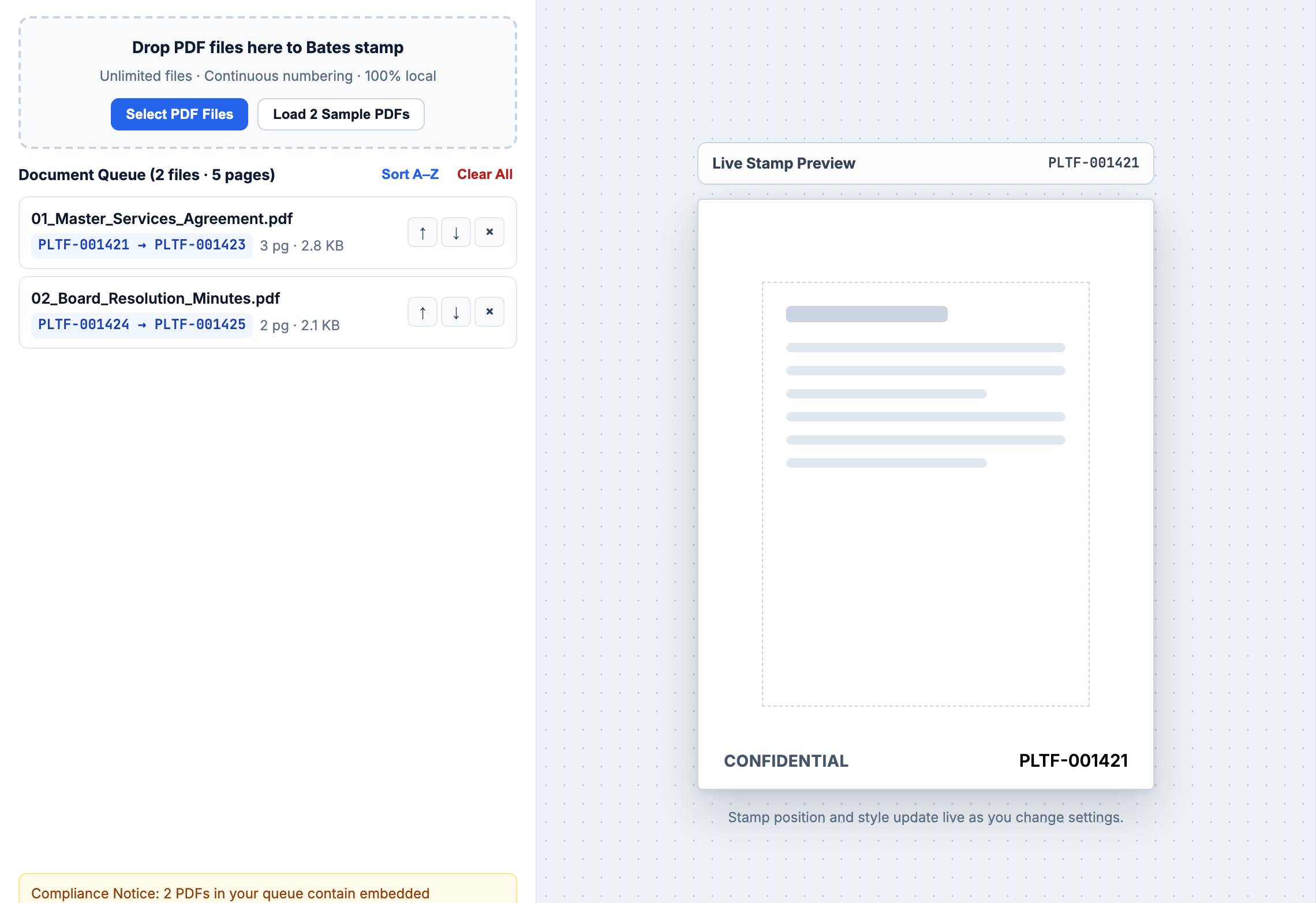
Sort A–Z: Clicking Sort A–Z inside the tool uses natural numeric collation—meaningExhibit_2.pdfis placed beforeExhibit_10.pdf(unlike raw ASCII sorting that puts10before2). - Manual Fine-Tuning: Use the up/down arrows on any row to move a cover sheet, table of contents, or master agreement to position #1. Every file's
BegBates → EndBatesbadge recalculates instantly as you reorder.
2. Continuing Sequence Across Rolling Batches With Start Number
Browser memory comfortably handles typical discovery folders locally, while multi-hundred-megabyte productions are best split into logical batches (by custodian or exhibit category). After Batch 1 finishes—say ending at PLTF-001420—open the tool for Batch 2 and enter 1421 in the Start Number box while keeping the same prefix and zero-padding width so your sequence remains gap-free.
3. Isolating Password-Protected or Corrupted PDFs Without Crashing
In large multi-file batches, a single encrypted bank statement or malformed scan can abort an entire desktop batch script. LegalProofKit inspects each dropped PDF individually in memory and flags any unreadable or password-locked file in red while leaving the rest of your queue intact—remove or unlock the flagged file and export without rebuilding your queue.
4. Choosing Between ZIP Bundle vs. Single Merged PDF
- ZIP Bundle: Keeps every exhibit as an independent PDF (optionally auto-renamed like
PLTF-000001_Contract.pdf), bundled withBates_Log.csvandLOCAL_PROCESSING_CERTIFICATE.txt—ideal for rolling eDiscovery productions. - Single Merged PDF: Combines all queued documents in exact order into one continuous binder PDF (downloading
Bates_Log.csvalongside it)—ideal for insurance demand packets and mediation binders.
Frequently Asked Questions
How does multi-PDF sorting handle numbered filenames like Exhibit_2 and Exhibit_10?
In the main Bates tool, click "Sort A–Z" to apply natural numeric sorting (so 2_Exhibit.pdf comes before 10_Exhibit.pdf), then use the up/down arrow buttons on individual rows to fine-tune the exact order. Live BegBates → EndBates badges update immediately.
How do I continue Bates numbering across two separate batches?
Note the final EndBates number from Batch 1 (for example, PLTF-001420) and enter the next integer (1421) in the Start Number field for Batch 2 while keeping the same prefix and zero-padding digits.
Will one password-protected PDF crash my entire multi-file batch?
LegalProofKit flags the specific password-protected or damaged file in red without crashing the rest of your queue. Simply remove or unlock that one file and proceed with stamping the remaining documents.
When should I export a ZIP bundle versus a single merged PDF?
Choose ZIP Bundle when opposing counsel or a review platform needs separate PDFs per exhibit; choose Single Merged PDF when assembling one continuous exhibit binder or demand packet. Both export Bates_Log.csv.
Ready to Bates stamp confidential PDFs locally with zero uploads?
Open the Free Bates Stamp Tool