
How to Bates Stamp PDFs Without Uploading Files — Offline Test
Verify zero-upload Bates numbering yourself in 4 steps: open the homepage tool while online, disconnect Wi-Fi, stamp locally, and inspect DevTools.
How to Bates Stamp PDFs Without Uploading Files (4-Step Offline Test)
Want to Bates stamp PDFs without uploading files to a third-party server? Because LegalProofKit runs entirely in local browser memory, you can prove zero network transmission yourself in under a minute before touching a real client exhibit. For the full technical architecture and IT allowlist documentation, read our Zero-Upload Security Architecture page.
- Open the Main Tool While Online: Click Open the Free Bates Stamp Tool above (or open the tool on the homepage) in Chrome, Edge, Firefox, or Safari while connected to the internet.
- Wait About 2 Seconds for Scripts to Load: Allow the homepage tool and its two pinned client-side JavaScript libraries (
pdf-libandJSZip) to finish loading into browser memory. - Disconnect From the Internet: Turn on Airplane Mode, switch off Wi-Fi, or unplug your Ethernet cable. Do not navigate between pages or refresh the tab once offline.
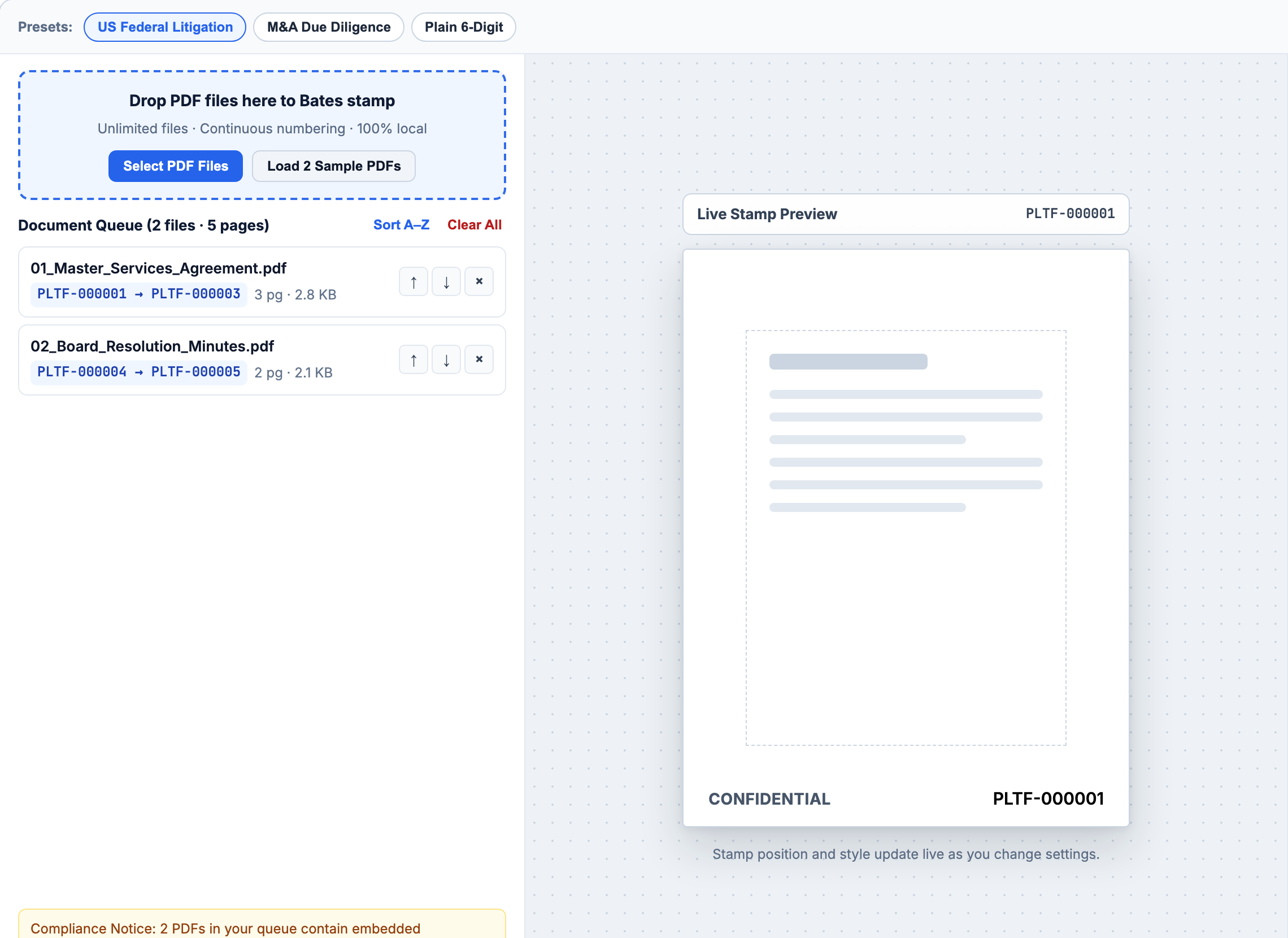
- Stamp, Export & Check DevTools: Drop your test PDFs into the homepage queue, set your prefix and starting number, and click Stamp PDFs & Export Bates Log. Confirm your stamped ZIP bundle and
Bates_Log.csvdownload normally while offline—and inspect the browser DevTools (F12→ Network tab) to verify zero outboundPOSTorPUTfile requests.
When Offline Verification Matters Most
Offline self-testing is especially helpful when preparing privileged discovery productions for law firm litigation teams or pre-release FOIA packages for government public records officers operating under strict data-residency rules.
Frequently Asked Questions
Why should I wait two seconds on the homepage tool before turning off Wi-Fi?
If you disconnect Wi-Fi before the homepage Bates tool finishes loading, your browser cannot fetch the static pdf-lib and JSZip scripts. Open the homepage tool first while online, wait about 2 seconds, then go offline—and do not navigate between pages after disconnecting.
What happens if I refresh or switch pages while in Airplane Mode?
Navigating to another URL or refreshing the homepage tool tab while offline will fail because the browser cannot reach the web. Stay on the loaded homepage tool tab while offline, use "Clear All" between batches, and do not navigate between pages until you reconnect.
What should I look for in Chrome DevTools Network tab to confirm zero uploads?
Look for any POST or PUT requests with a PDF payload or document filename after you drop files and click Stamp on the homepage tool. You will see none—your browser reads files via local File.arrayBuffer() and downloads output via a local Blob URL.
Ready to Bates stamp confidential PDFs locally with zero uploads?
Open the Free Bates Stamp Tool